
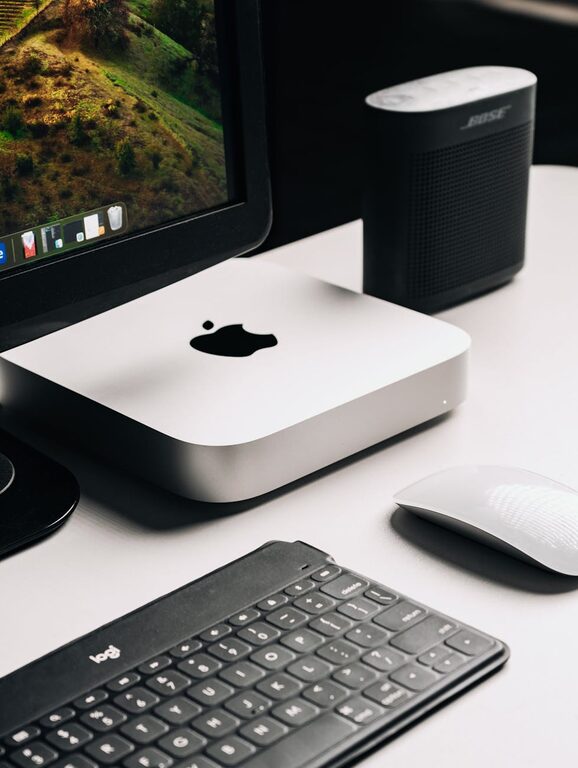
Keeping your computer files organized can save you time, reduce stress, and improve your overall productivity. Whether you use your computer for work, school, or personal projects, having a clear system for managing files makes it easier to find important documents and maintain an orderly digital environment. If your desktop is cluttered or your folders seem like a maze, read on for practical tips to get your files under control.
Why Organizing Files Matters
Before diving into the how-to, it’s worth understanding why organizing files is beneficial:
– Saves time: You won’t waste minutes searching for documents.
– Reduces frustration: A clear system prevents confusion and stress.
– Improves productivity: Easy access to files helps you focus on your tasks.
– Prepares for backups: Well-organized files make backups more efficient.
1. Plan Your Folder Structure
Start by creating a simple and logical folder system. Think about the main categories you use regularly.
Tips for Setting Up Folders
– Use broad categories first, such as Work, Personal, Photos, or School.
– Inside each category, create subfolders for projects, dates, or topics.
– Keep folder names short but descriptive.
– Avoid overly deep folder structures to prevent confusion.
Example:
“`
Documents
├── Work
│ ├── ProjectA
│ └── Reports
├── Personal
│ ├── Taxes
│ └── Receipts
└── Photos
├── Vacations
└── Family
“`
2. Name Files Consistently and Clearly
File names are key to locating files quickly.
Naming Tips
– Use descriptive names that explain the file’s content.
– Include dates in YYYY-MM-DD format for easier sorting.
– Avoid spaces and special characters; use underscores or hyphens instead.
– Keep file names consistent within the same category or project.
Example:
`2024-04-15_ProjectA_MeetingNotes.docx`
`Tax_Return_2023.pdf`
3. Use Tags or Labels if Available
Some operating systems allow tagging or labeling files for easier searching later.
– Use color-coded tags or keywords to mark files by priority or status.
– Combine tags with your folder system for double-layered organization.
For example, tag work files as “Urgent” or “Reviewed” to keep track of their progress.
4. Clean Up Your Desktop
Having too many files on your desktop can slow down your computer and make it harder to find things.
– Limit desktop items to shortcuts and very frequently used files.
– Move files into your organized folder system regularly.
– Use desktop folders to group related shortcuts if needed.
5. Delete or Archive Unnecessary Files
Clutter accumulates over time, so it’s important to regularly audit your files.
– Delete duplicates and outdated files you no longer need.
– Archive old projects by compressing folders (using ZIP/RAR) or moving them to external storage.
– Empty your Recycle Bin or Trash to reclaim space.
6. Use Cloud Storage for Easy Access and Backup
Cloud services like Google Drive, Dropbox, or OneDrive offer space to store organized files accessible from any device.
– Sync your important folders to the cloud automatically.
– Organize cloud folders the same way you do on your computer.
– Benefit from built-in search and sharing features.
7. Make Use of File Management Tools
There are many tools and apps designed to help with file organization.
– Use built-in search features (Spotlight on Mac, Windows Search).
– Try dedicated file organizer software for automatically categorizing files.
– Use duplicate file finders to clean up repeated files.
8. Schedule Regular File Maintenance
Organization is not a one-time task, but an ongoing habit.
– Set aside time weekly or monthly to organize new files.
– Review folder structures and naming conventions periodically.
– Backup your files before any major cleanup or reorganization.
—
By following these tips, you’ll build a reliable and efficient system to keep your files sorted and accessible. Organized files are the foundation of a productive digital workspace—once set up, you’ll wonder how you managed without it! Start small, stay consistent, and enjoy the ease of a clutter-free computer.